Creating campaigns
A campaign is created in four steps: Type → Design → Targeting → Publish. You can leave at any point and come back: every step is saved.
Step 1 — Type
Click New campaign, give the campaign a name (visitors never see it), optionally add tags, then choose how it appears on the page.
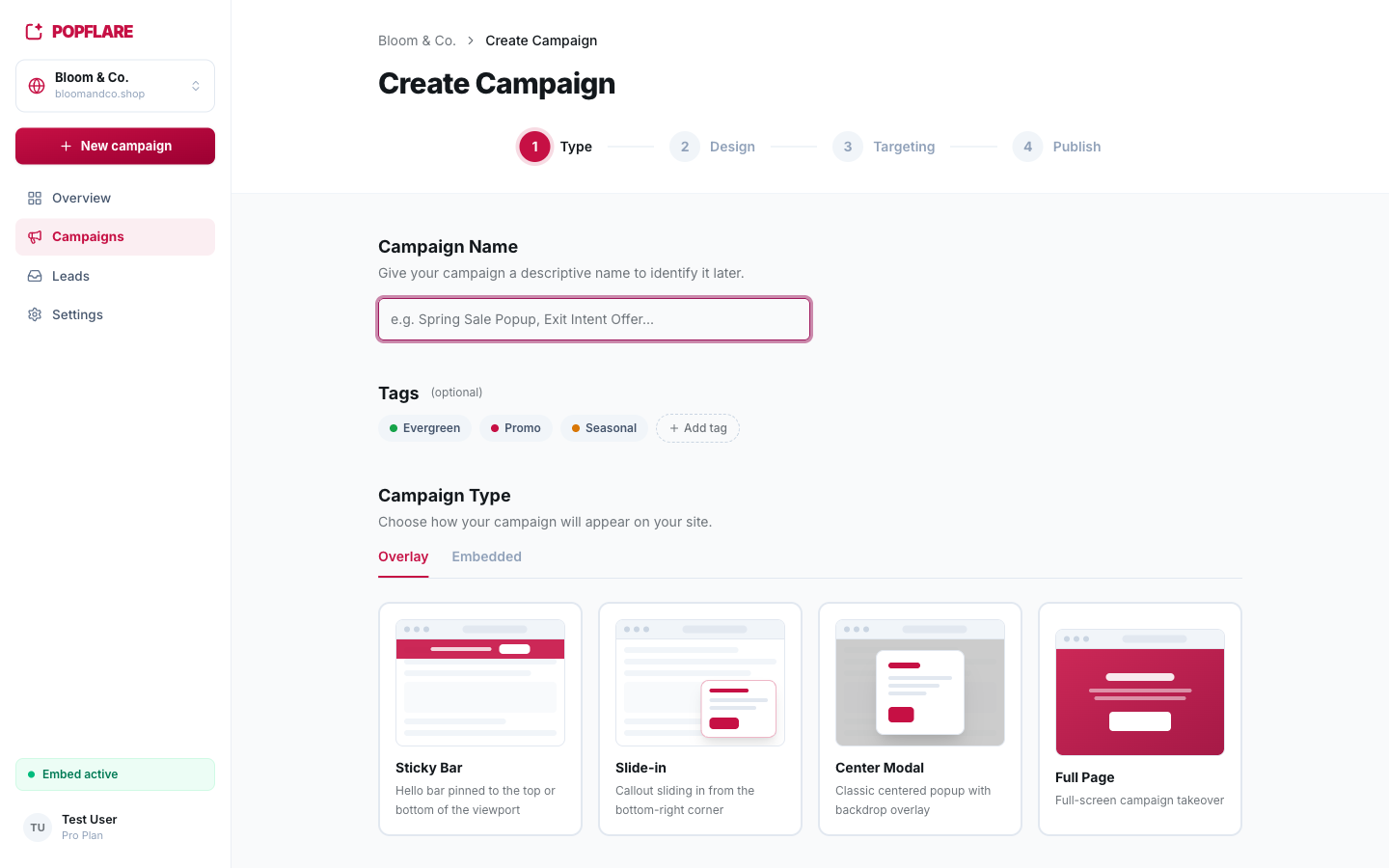
| Type | Best for |
|---|---|
| Center Modal | Classic opt-in popup with a dimmed backdrop: welcome offers, newsletters, lead magnets. |
| Slide-in | A discreet card sliding in from the corner: blog subscriptions, soft nudges. |
| Sticky Bar | A bar pinned to the top or bottom of the page: announcements, free-shipping or flash-sale messages. |
| Full Page | A full-screen takeover for high-impact moments such as launches or Black Friday. |
| Inline (Embedded tab) | A form placed inside the page content instead of on top of it. |
You then pick a template: 35 ready-made designs grouped by goal (e-book / lead magnet, discount / coupon, newsletter, webinar / event, exit intent, seasonal, free trial / demo), or a blank canvas. Every template is fully editable in the next step.
Step 2 — Design
The visual editor opens with your template. See The visual editor and Multi-step popups.
Step 3 — Targeting
Decide on which pages, on which devices, at which moment and how often the campaign appears, and what counts as a conversion. See Targeting & triggers.
Step 4 — Publish
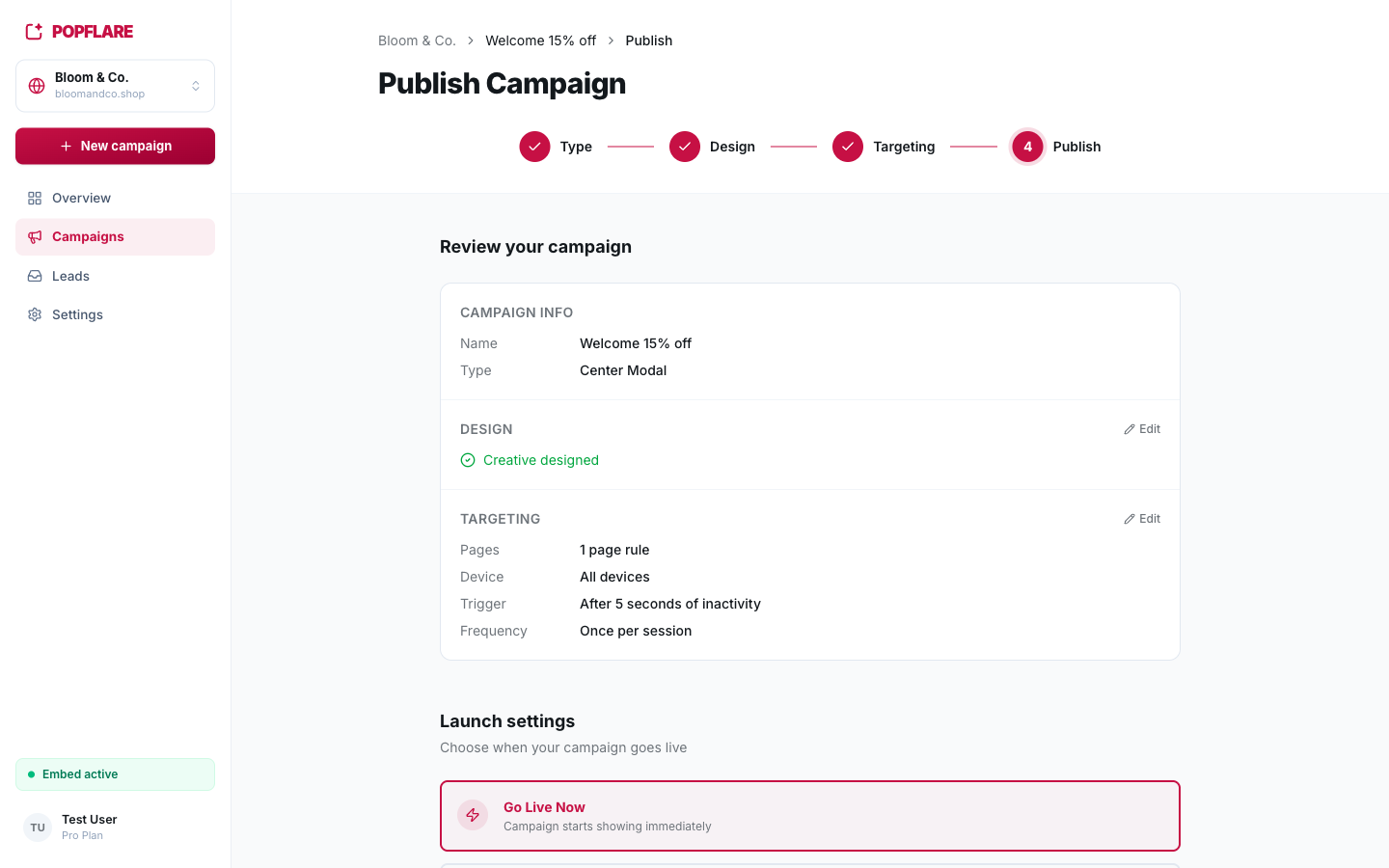
Review the summary, then choose how to launch:
- Go live now: the campaign starts showing immediately.
- Schedule: set a start and/or end date and time; the campaign switches on and off by itself.
- Save as draft: keep working on it without showing it to anyone.
Managing campaigns
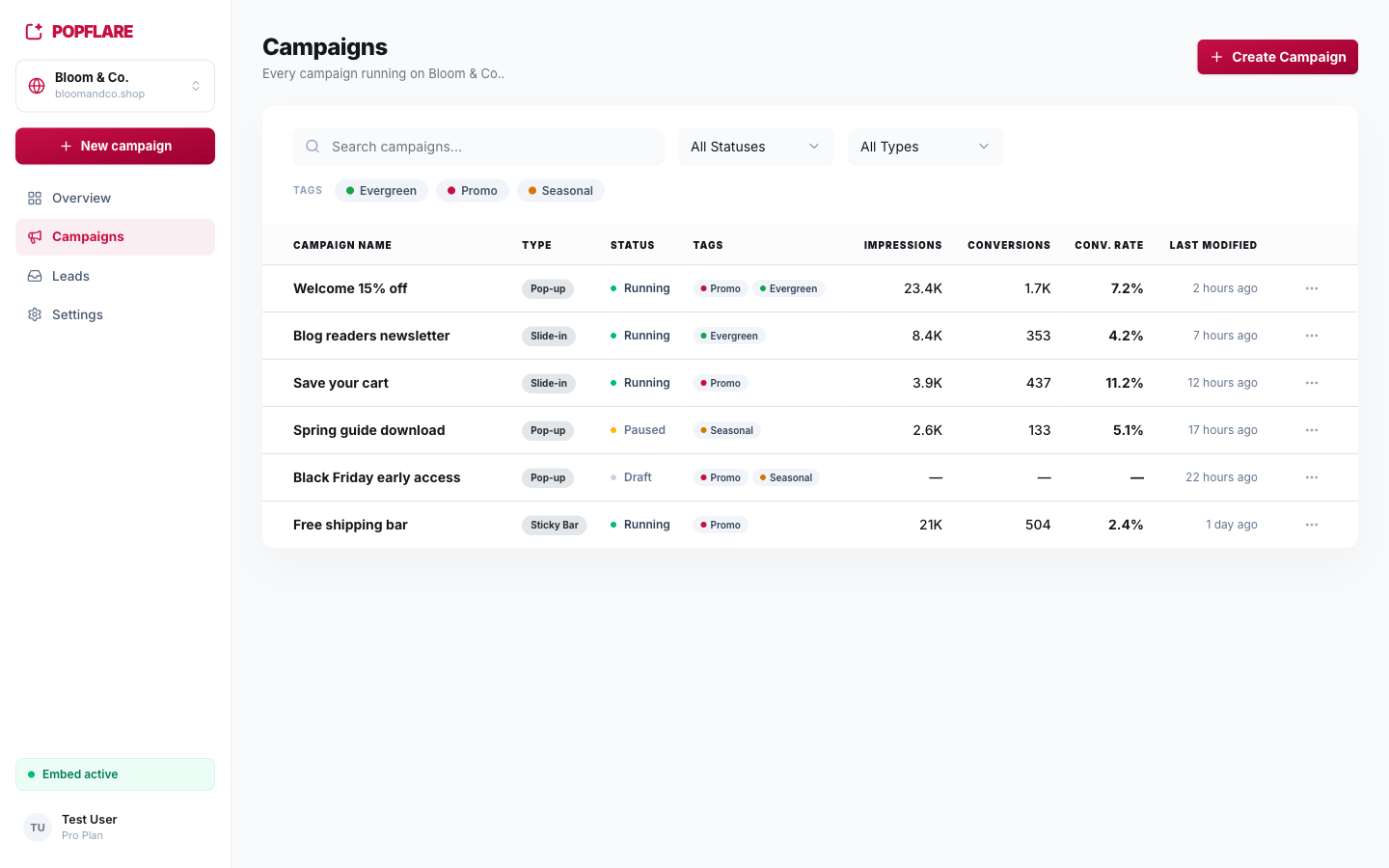
The Campaigns page lists every campaign with its type, status and performance. Filter by status, type or tag and search by name.
The campaign page
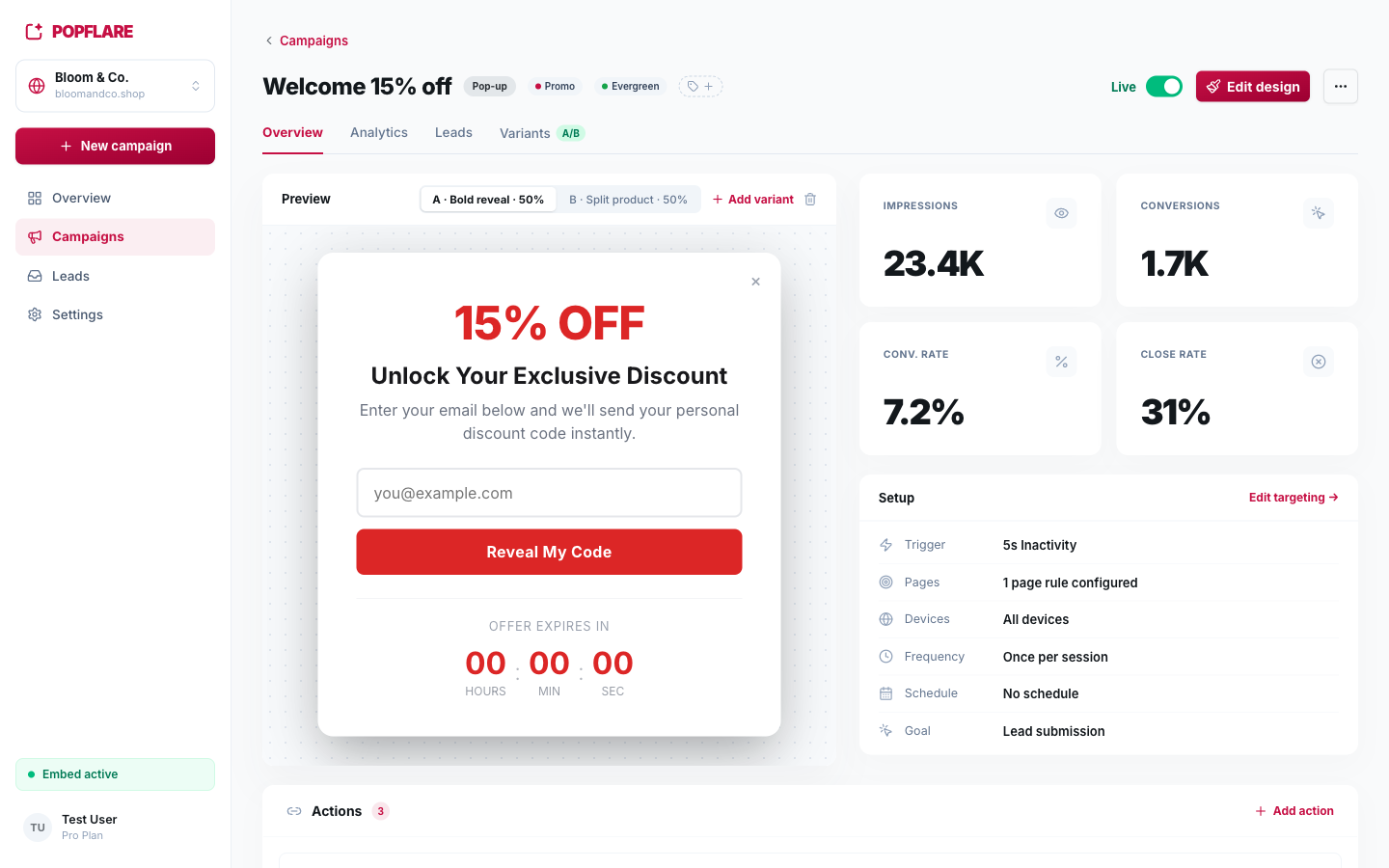
Click a campaign to open its hub. From here you can:
- switch it Live or pause it with the toggle;
- open the editor with Edit design;
- see the live preview of each variant, the headline KPIs and a recap of the setup;
- configure the actions that run on every lead;
- move between the Overview, Analytics, Leads and Variants tabs.
Tags
Tags (for example Promo, Seasonal, Evergreen) help you organise and filter campaigns. Add them from the wizard or with the + next to the campaign title.
Duplicate, archive, delete
- Duplicate (⋯ menu) copies settings, variants and actions. The copy starts as a draft with fresh statistics, which is handy for country versions or seasonal re-runs.
- Delete removes a campaign that never ran. A campaign that has collected statistics is archived instead, so impressions, conversions and leads are never lost.