Multi-step popups
A popup can have several screens, called steps: a thank-you screen after the form, a code reveal after a click, a two-question survey… Steps live in the Steps tab of the editor.
Kinds of steps
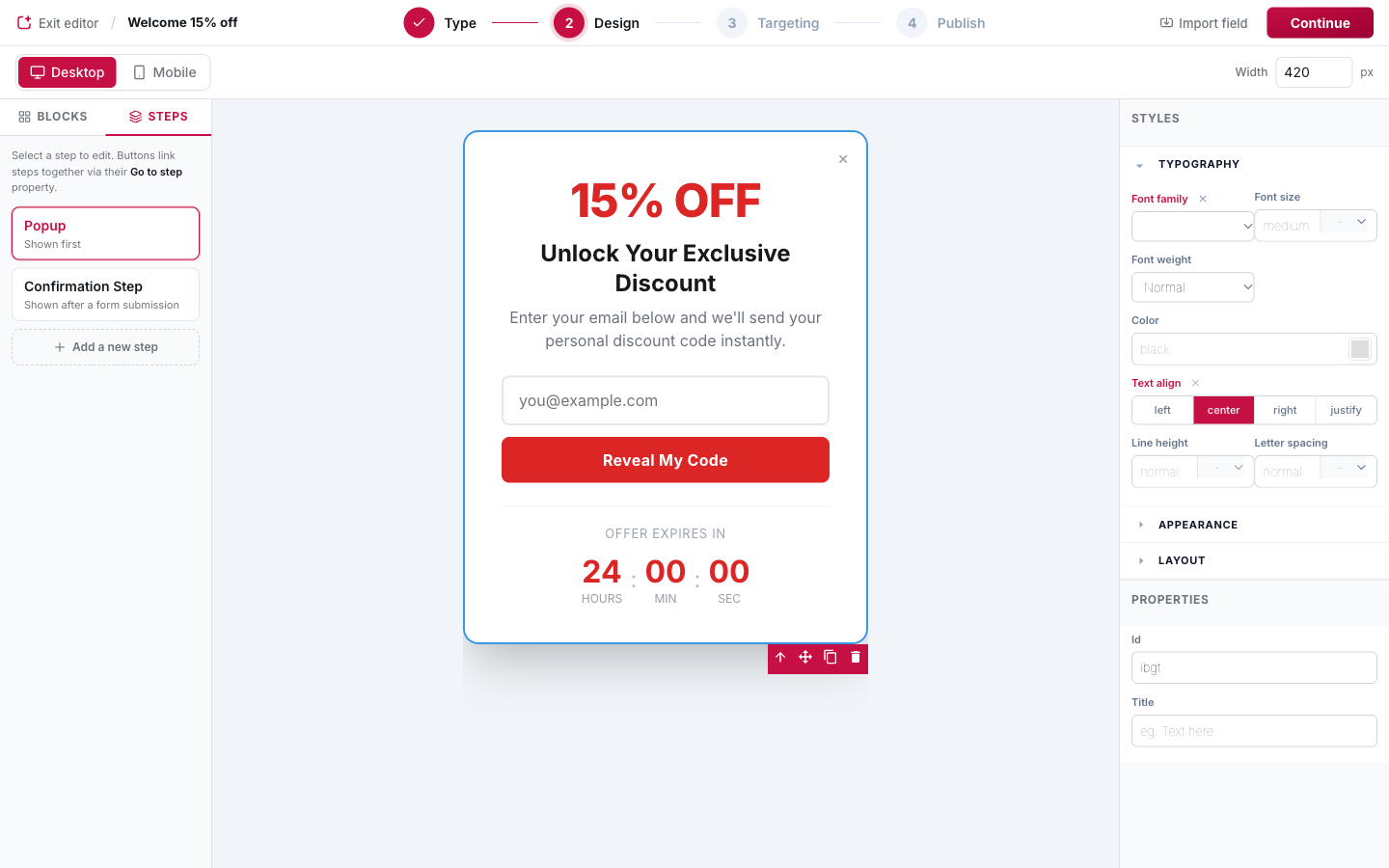
| Step | When visitors see it |
|---|---|
| Popup | Shown first, when the campaign triggers. |
| Confirmation Step | Shown after a form submission (unless the campaign redirects, see below). |
| Custom steps | Reached from a button whose Go to step points to them. |
Select a card to edit that step on the canvas. On the active card you can rename it, copy the design from the popup (to start from the same look) or delete it. + Add a new step creates a new screen.
The Confirmation Step
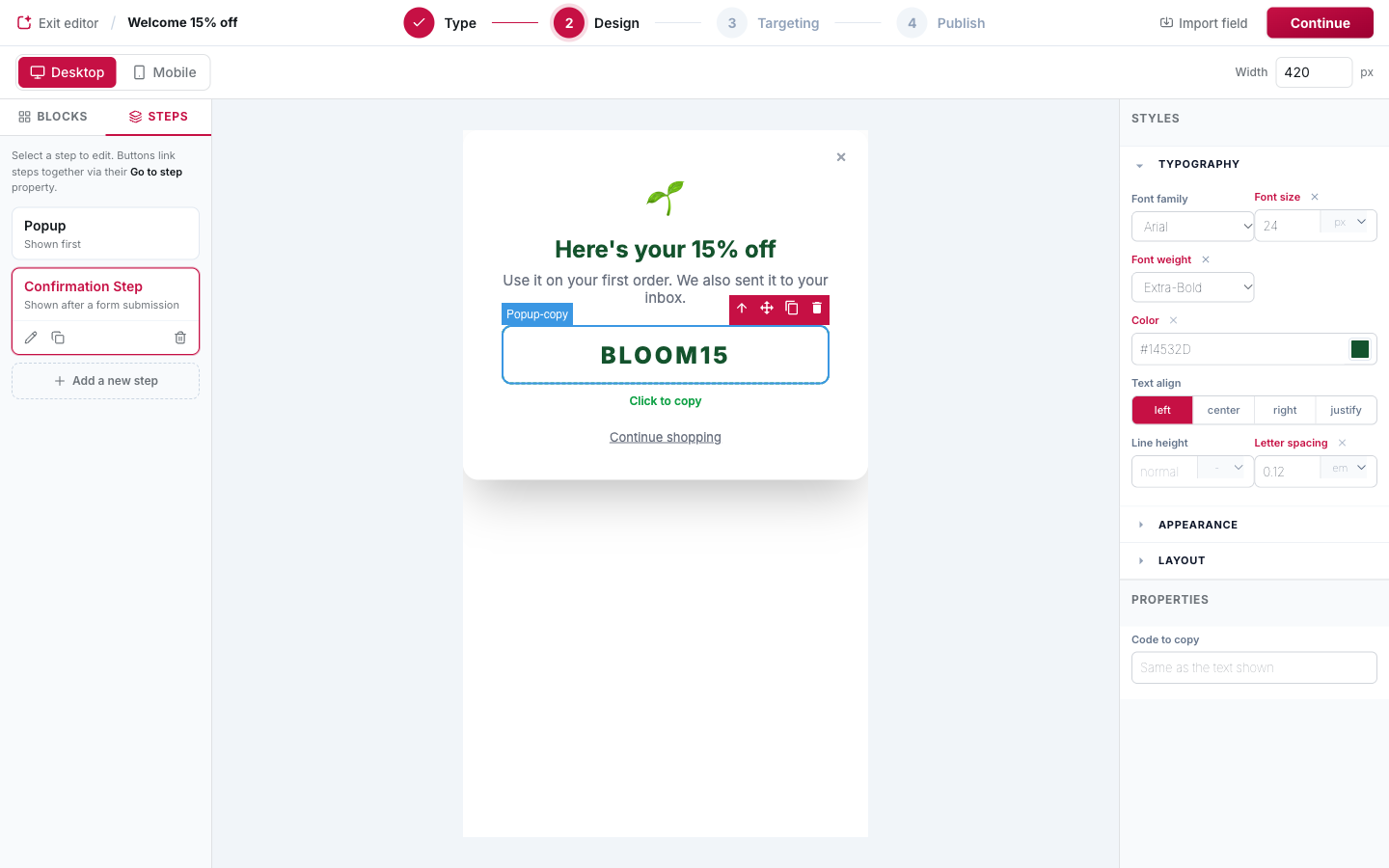
Design the screen visitors see once they have submitted the form: a thank-you message, the discount code (with a Copy Code block), a link back to the shop… If a campaign has no Confirmation Step, PopFlare shows a simple generic thank-you message.
Go to step
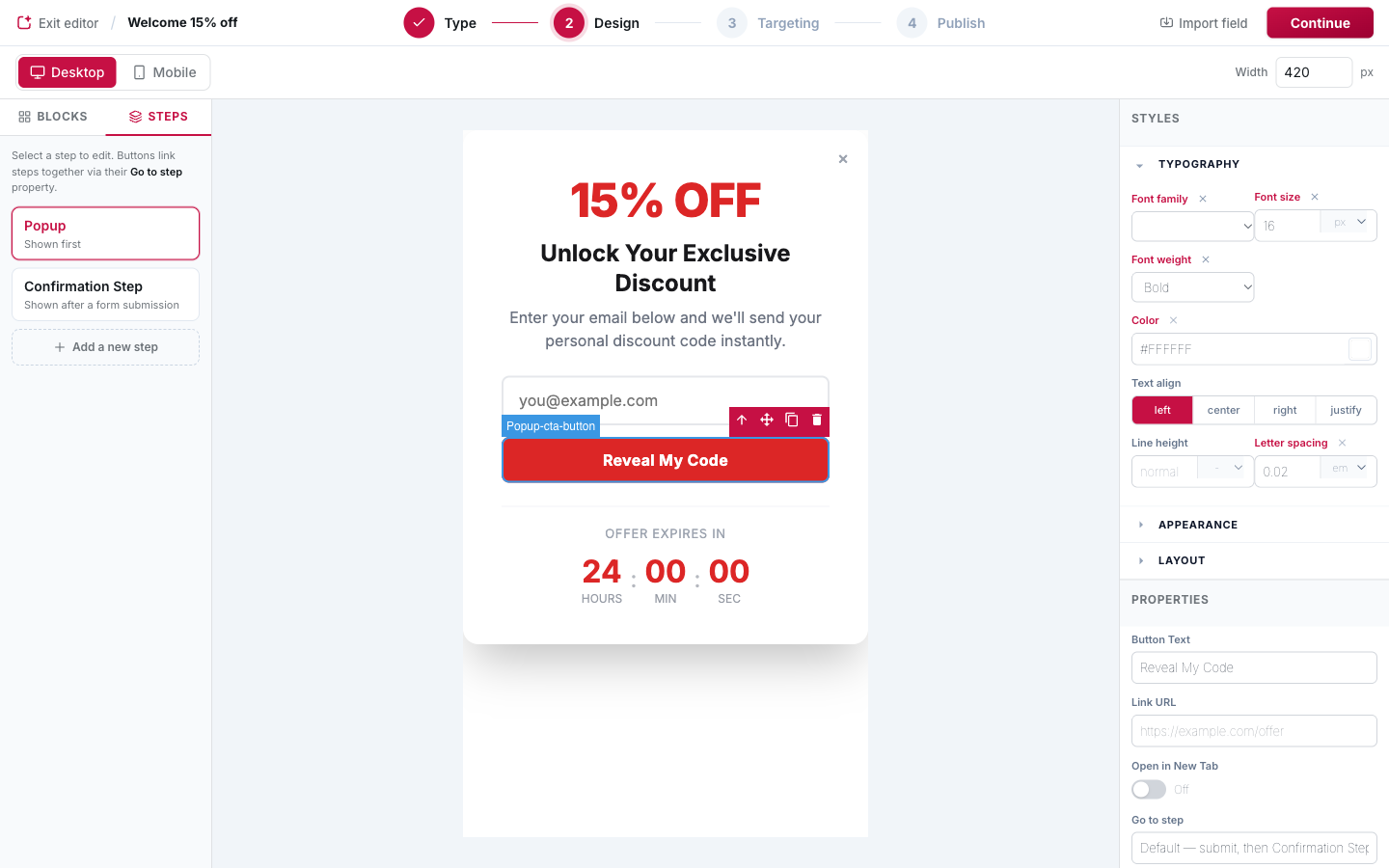
Every CTA button has a Go to step property that decides what the click does:
- Default — submit, then Confirmation Step: submits the form and shows the confirmation (or redirects).
- Next step in order: moves to the next step in the list.
- A specific step: jumps straight to it. If the step contains form fields, they are submitted first.
Tip
A step that no button links to is flagged with an amber warning in the Steps tab, so no screen is left unreachable by mistake.
After the visitor converts: confirmation or redirect
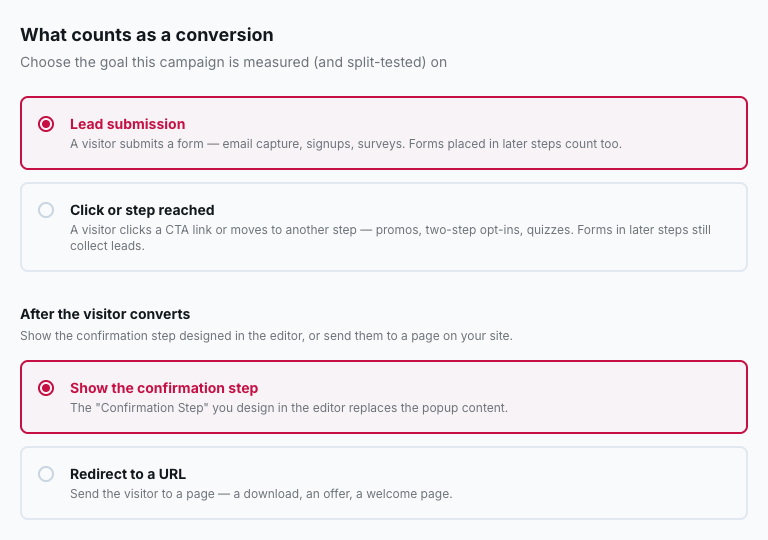
In Targeting → After the visitor converts, choose what happens after a submission:
- Show the confirmation step: the Confirmation Step replaces the popup content.
- Redirect to a URL: send the visitor to a page, such as a download, a welcome page or an offer.
Recipes
Email first (code gated behind the form)
- Popup: headline, email field, CTA "Get my code" (Go to step: default).
- Confirmation Step: the code in a Copy Code block.
- Goal: Lead submission.
Code first (email optional)
- Popup: headline and CTA "Reveal my code" with Go to step → your code step.
- Code step: the code (Copy Code), plus an optional email field and a "Send it to me" button.
- Goal: Click or step reached. Emails collected in the code step are still saved as leads and routed to your integrations.
Two-question survey
- Step 1: a radio group and a button with Go to step → Next step in order.
- Step 2: another question, the email field and the submit button.
- Confirmation Step: thank you.
Run two of these as variants of the same campaign to find out which flow converts better, see Goals & A/B testing.