AI agents (MCP)
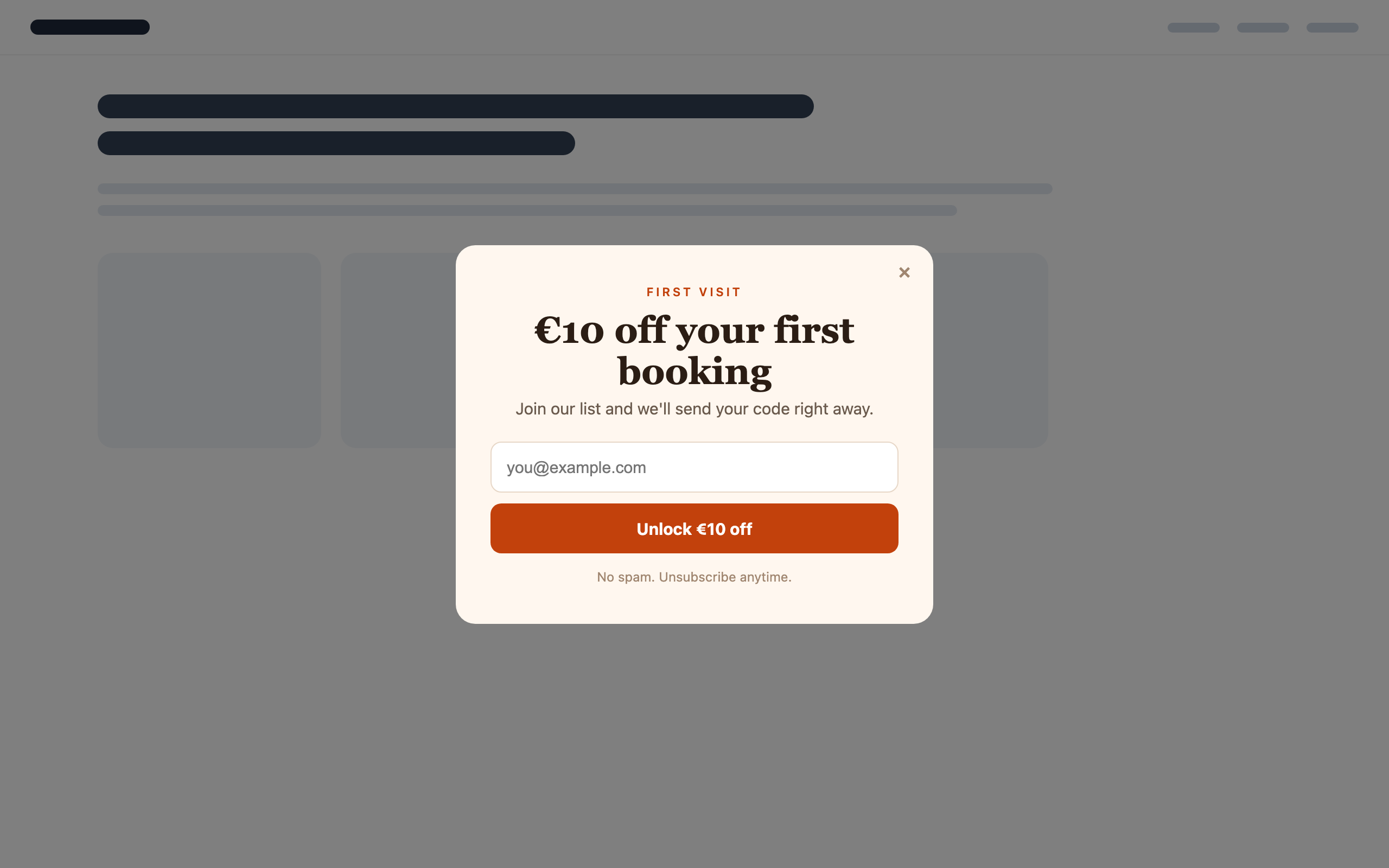
Connect PopFlare to Claude, ChatGPT, Cursor or Claude Code and work by asking: "create a 10% welcome popup like this screenshot, only on product pages, after 20 seconds", "how is the split test doing?", "send the failed leads again". The agent uses PopFlare with your own access, through the open Model Context Protocol (MCP).
Tip
The PopFlare MCP server is available on paid plans (Pro and Business, personal or team).
Connect your agent
The server address is https://popflare.io/mcp. The first time, your agent opens the PopFlare sign-in page: log in, check what the agent is asking for and click Authorize.
| Tool | How |
|---|---|
| Claude (web and desktop) | Settings → Connectors → Add custom connector, paste the address. |
| Claude Code | claude mcp add --transport http popflare https://popflare.io/mcp, then run /mcp to sign in. |
| ChatGPT | Turn on developer mode in the settings, add a new connector and paste the address. |
| Cursor | Add a remote (HTTP) MCP server with the address in Cursor's MCP settings. |
What agents can do
Everything you do in the dashboard, with the same rules and the same access:
- Read: sites and the embed snippet, campaigns and their setup, designs, stats by day, campaign and variant (with top pages), leads and whether they reached your tools, analytics settings.
- Create and change: campaigns from scratch or from a template, designs and steps, targeting, triggers, frequency, goals and schedules, A/B variants and traffic split, lead actions (Braze, webhooks…), analytics events, extra domains.
- See the result: agents take a screenshot of the popup on desktop and mobile, compare it with what you asked and fix it. In Claude, ChatGPT, Cursor and VS Code they can show you the popup live in the chat, and they always give you a preview link.
- Templates: agents can start from any of PopFlare's ready-made templates and adapt it.
- Images: agents can copy a logo or product picture from your website into PopFlare, or upload a file, and use it in the design.
Safe by design
- Your access, nothing more. The agent can only see and change what you can. Site settings and integrations need owner or admin rights, exactly as in the dashboard.
- Drafts first. New campaigns are drafts. Publishing, deleting and changes to live campaigns are actions your AI tool asks you to confirm.
- Clean designs. Every design is cleaned of scripts and unsafe links before it is saved, whoever wrote it.
- No secrets. API keys of your integrations are never shown to agents: connect integrations yourself in Settings → Integrations.
- Traced. PopFlare records which agent used which tool and when (never the content).
- Disconnect any time. Remove PopFlare from your AI tool's connectors; access also stops if your plan or team membership changes.
Preview links
A preview link shows a campaign's popup on a sample page, on desktop and mobile, with its variants and steps. Anyone with the link can open it without a PopFlare account, for 7 days; nothing is tracked or submitted. Agents give you one after creating or changing a design, and you can make one yourself with Share preview on the campaign page.
Things to ask
- "Create an exit-intent popup for the cart page with the code SAVE10, in the style of this screenshot."
- "Duplicate the UK newsletter campaign for Germany, translate it, and show it only on /de/ pages."
- "Compare the two variants of the welcome popup over the last 14 days and tell me which one to keep."
- "Add a Braze event called signup_popup with the variant tag to every lead of this campaign."
- "Which leads of last week did not reach Braze? Send them again."